
Veeam Data Platform 13.1 introduces a new integration for customers protecting AWS workloads. You can now connect Veeam Data Cloud Vault directly to the Veeam Backup for AWS appliance that manages it, closing a key protection gap.
Instead of setting up your own S3 bucket, writing IAM policies, and managing access keys, you can now provision and connect Veeam Vault for AWS directly from the Veeam Backup & Replication console. The resulting repository is registered as an external repository, making it immediately available to Veeam Backup for AWS for policies, backups, and restores.
Let’s walk through what this integration delivers, why it matters if you’re protecting EC2, RDS, and other AWS workloads with Veeam Backup for AWS, and how to set it up end to end from the Veeam Backup & Replication console.
Key Features of the Integration
Key Features of the Integration
This integration is designed to make Veeam Vault easier to adopt for AWS protection. Instead of building and maintaining cloud storage manually, you can add an immutable, Veeam-managed vault directly into the workflows you already use. The result is a simpler way to add secure cloud storage without reworking your existing backup architecture, made possible through these features:
- Native external repository: The vault registers in Veeam Backup & Replication as an external repository under the Veeam Backup for AWS appliance, the same place you already manage that appliance’s other repositories.
- No shared keys: Authorization happens through a Veeam Customer Portal sign-in using a Microsoft or Veeam account, rather than long-lived AWS access and secret keys. Access is federated and role-based, not credential-based.
- Immutability by default: The wizard makes backups immutable for the entire duration of their retention policy, and this can’t be turned off. Immutability relies on native object storage capabilities, not on a setting you could accidentally disable.
- Storage Vault as its own repository type: In Veeam Backup for AWS, the new repository shows up with its own type, Storage Vault, separate from a standard backup repository. It uses the S3 Standard-IA storage class by default.
- Works alongside existing repositories: You do not need to move away from your current Veeam Backup for AWS repository. The vault is simply another repository option for the same appliance.
Why This Matters
For AWS teams, resilience often comes down to how quickly they can create an isolated, immutable backup copy without adding operational drag. This integration helps by making Veeam Vault available directly within the Veeam Backup for AWS workflow, reducing the need for manual storage setup, long-lived credentials, and unpredictable cloud storage charges. Here’s what that means in practice:
- Ransomware resilience without extra design work: Backups sent to the vault are immutable and logically air-gapped from your production AWS account by design, providing the kind of secondary, isolated copy many 3-2-1-1-0 strategies depend on.
- Less credential management: Removing the access key and secret key step means one less set of long-lived credentials to rotate, store, and protect from leaks.
- Predictable cost: Veeam Vault is billed per TB, inclusive of API calls, so there’s less risk of surprise costs from backup or restore activity compared with a self-managed bucket.
- Faster onboarding for AWS-only shops: If you already run Veeam Backup for AWS and don’t have another AWS account earmarked for backup storage, this gives you a path to an offsite, immutable copy without provisioning storage in your own AWS environment.
Setting Up Veeam Vault in Veeam Backup for AWS
Below, you’ll find a short video demonstrating how to set up Veeam Vault for AWS in Veeam Backup for AWS. Alternatively, you can look at the step-by-step guide below.
Setting this up is done entirely from the Veeam Backup & Replication console, and it’s quicker than provisioning your own S3 bucket and IAM policy:
- Open the Veeam Backup & Replication console and go to the Backup Infrastructure view.
- Select External Repositories and click Add Repository.
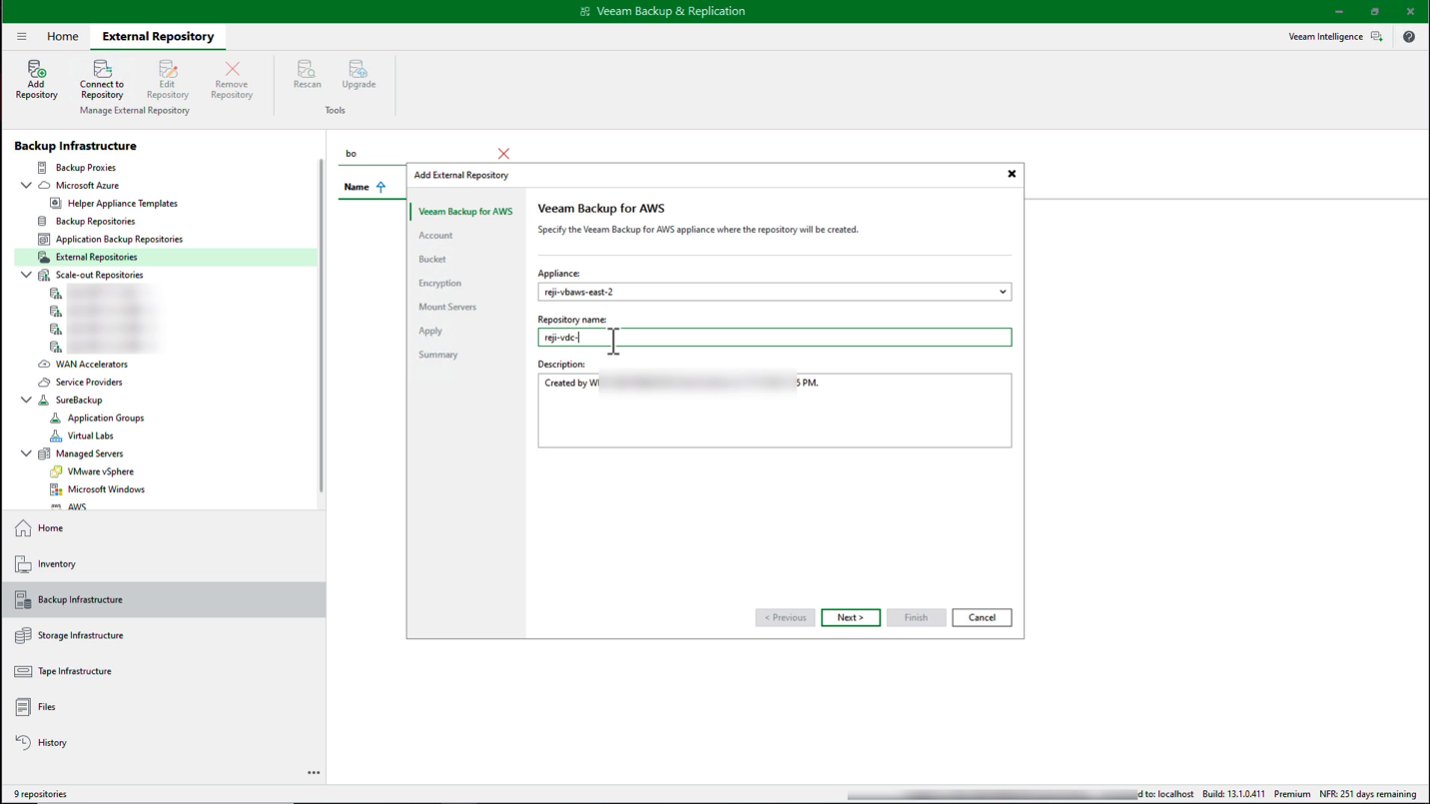
- Choose Veeam Backup for AWS, pick the appliance that should own the repository, and give the repository a name.
- At the Account step, click Authorize and sign in to the Veeam Customer Portal with either your Microsoft or Veeam account.
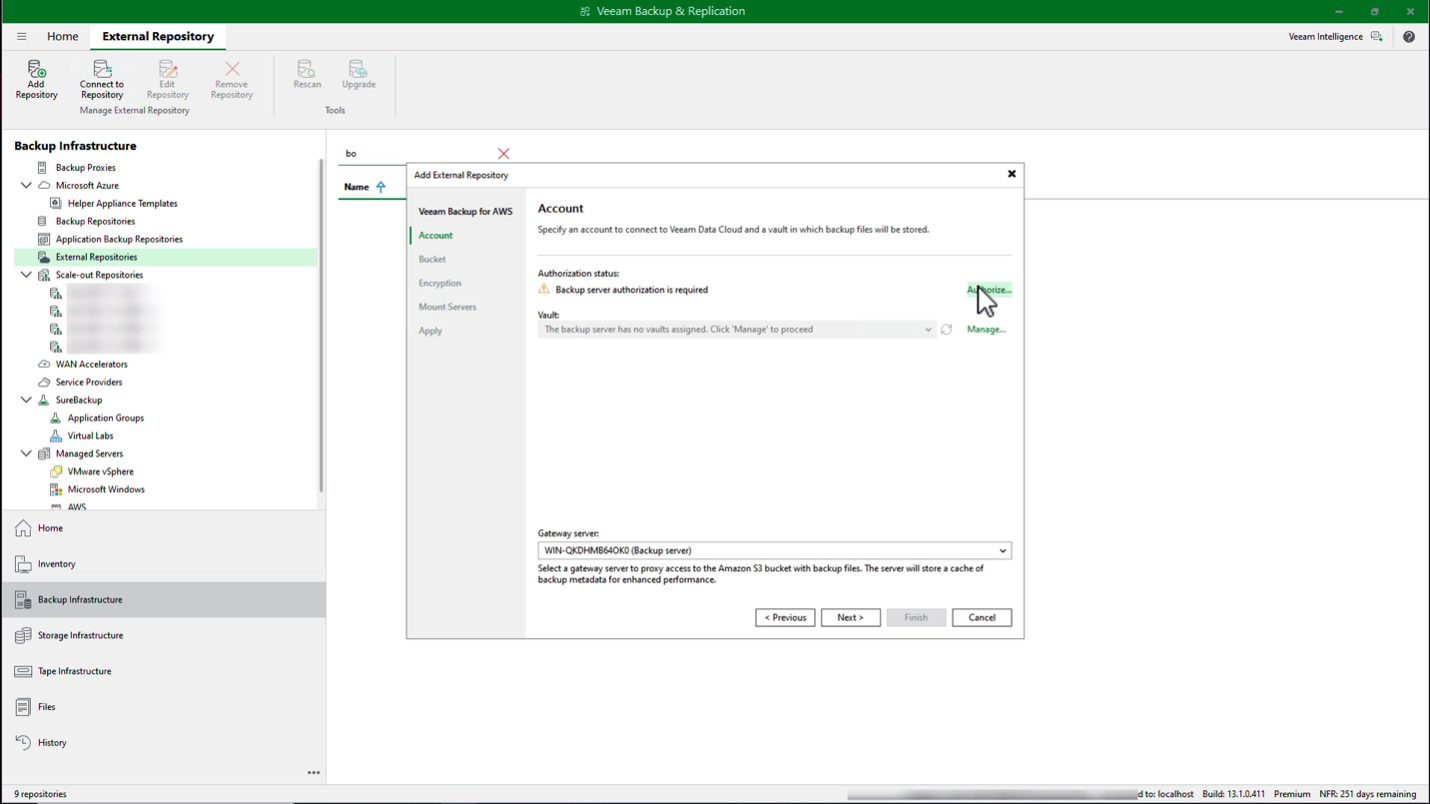
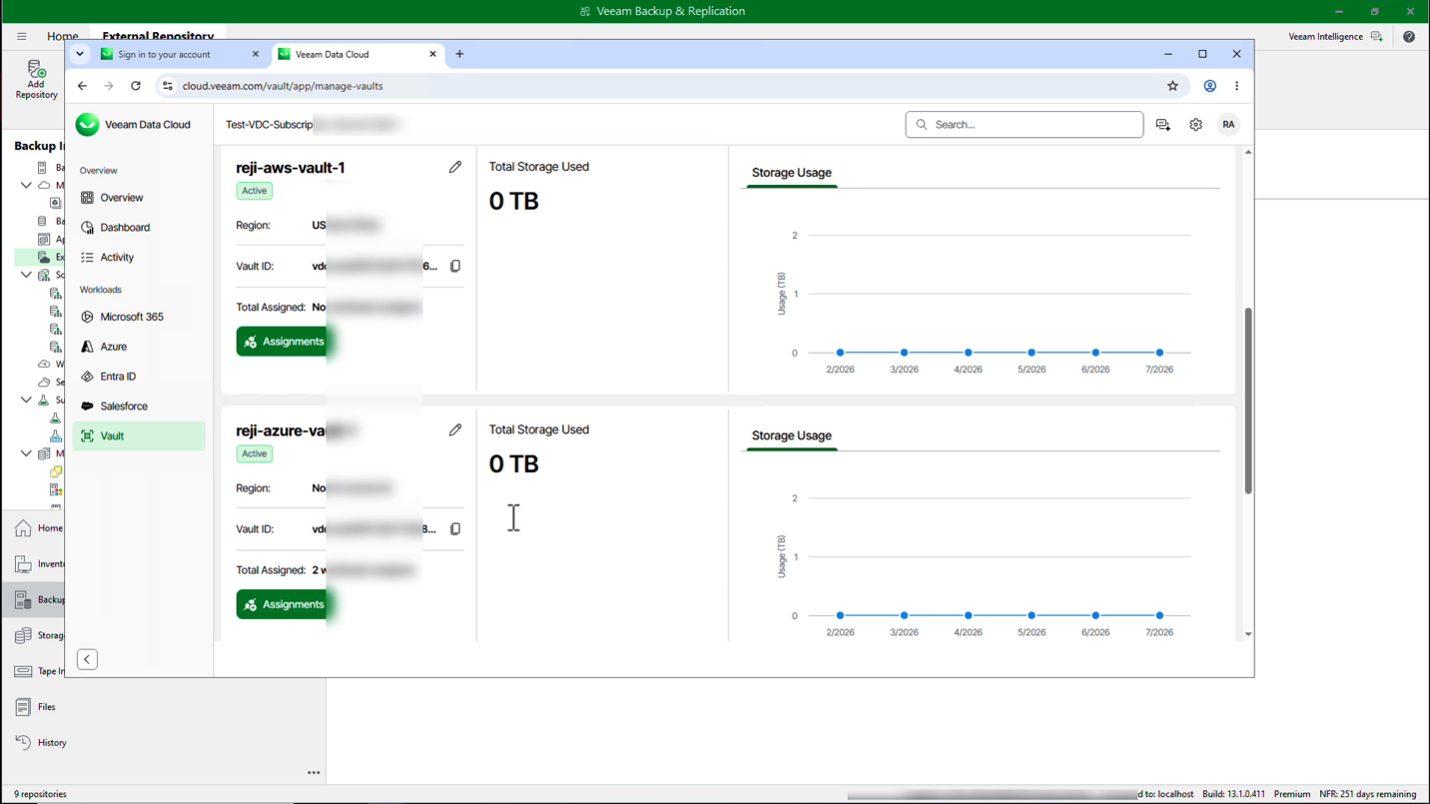
- If this is the first repository of this kind for the appliance, the Veeam Vault field will tell you the backup server has no vaults assigned. Click Manage to open Veeam Data Cloud in your browser.
- In Veeam Data Cloud, go to Manage Vaults, find the vault you want to use (or create a new AWS vault if you haven’t already), and click Assignments, then Assign, to associate this Veeam Backup for AWS appliance with the vault.
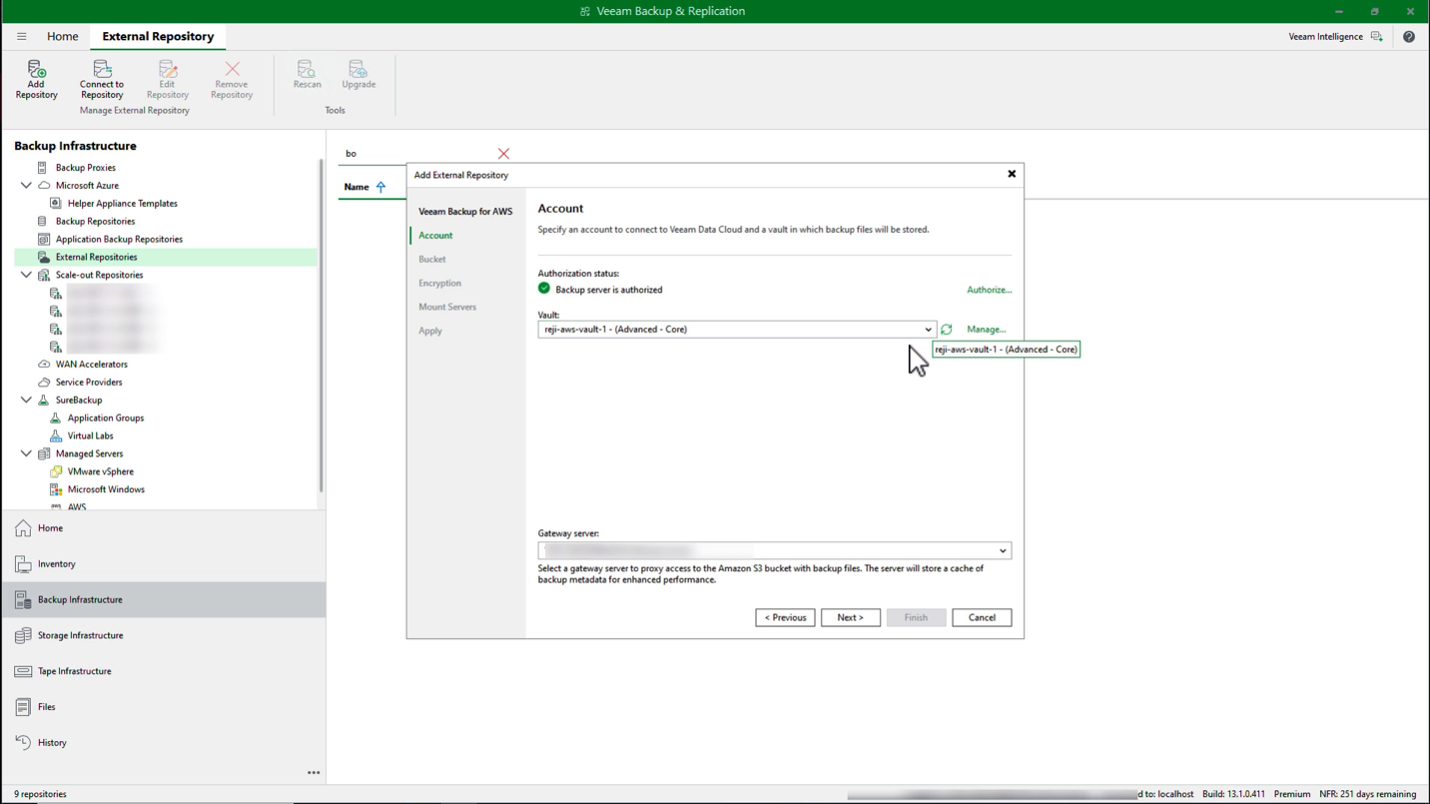
- Back in the wizard, refresh the Vault drop-down. You should now see the vault along with its edition, for example reji-aws-vault-1 – (Advanced – Core). Select it, then choose a gateway server to proxy access to the S3 bucket and cache backup metadata.
- Veeam Backup & Replication creates a Microsoft Entra ID application behind the scenes and initializes the vault. This part can take a few minutes, so don’t be alarmed if it sits on “Initializing Veeam Data Cloud Vault” for a bit.
- At the Bucket step, the data center, bucket, and folder are already filled in based on the vault you selected. Make backups immutable for the entire duration of their retention policy is selected and can’t be unchecked, which is expected.
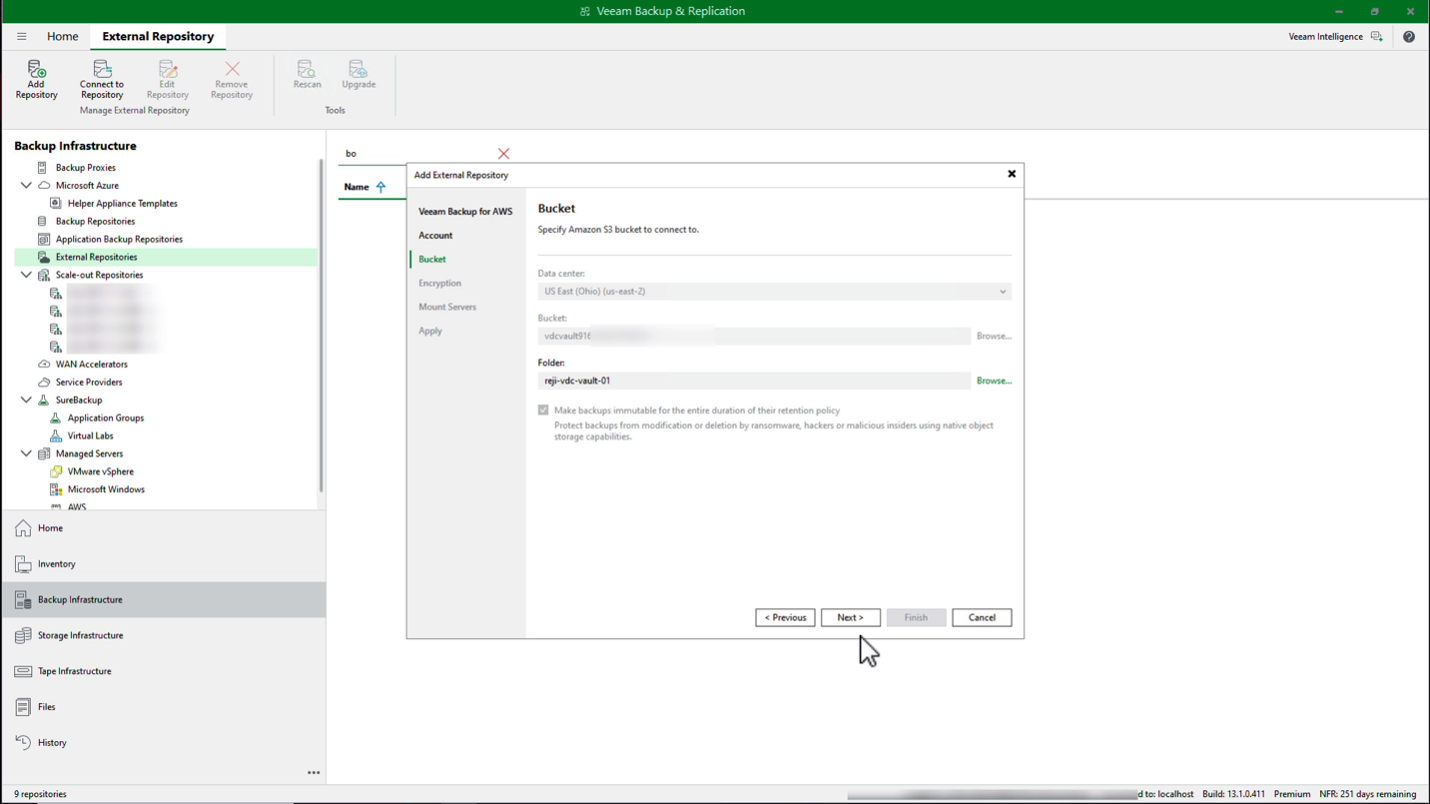
- Optionally enable backup file encryption at the Encryption step.
- Review the Mount Servers step, then click Apply. You’ll see Veeam Backup & Replication create the Amazon S3 backup repository, followed by the Veeam Vault repository.
- Click Finish.
Once that’s done, jump over to the Veeam Backup for AWS web UI for that appliance and open Repositories. You’ll see the new repository listed with type Storage Vault, storage class S3 Standard-IA, and immutability Enabled, sitting right alongside your existing standard backup repository.
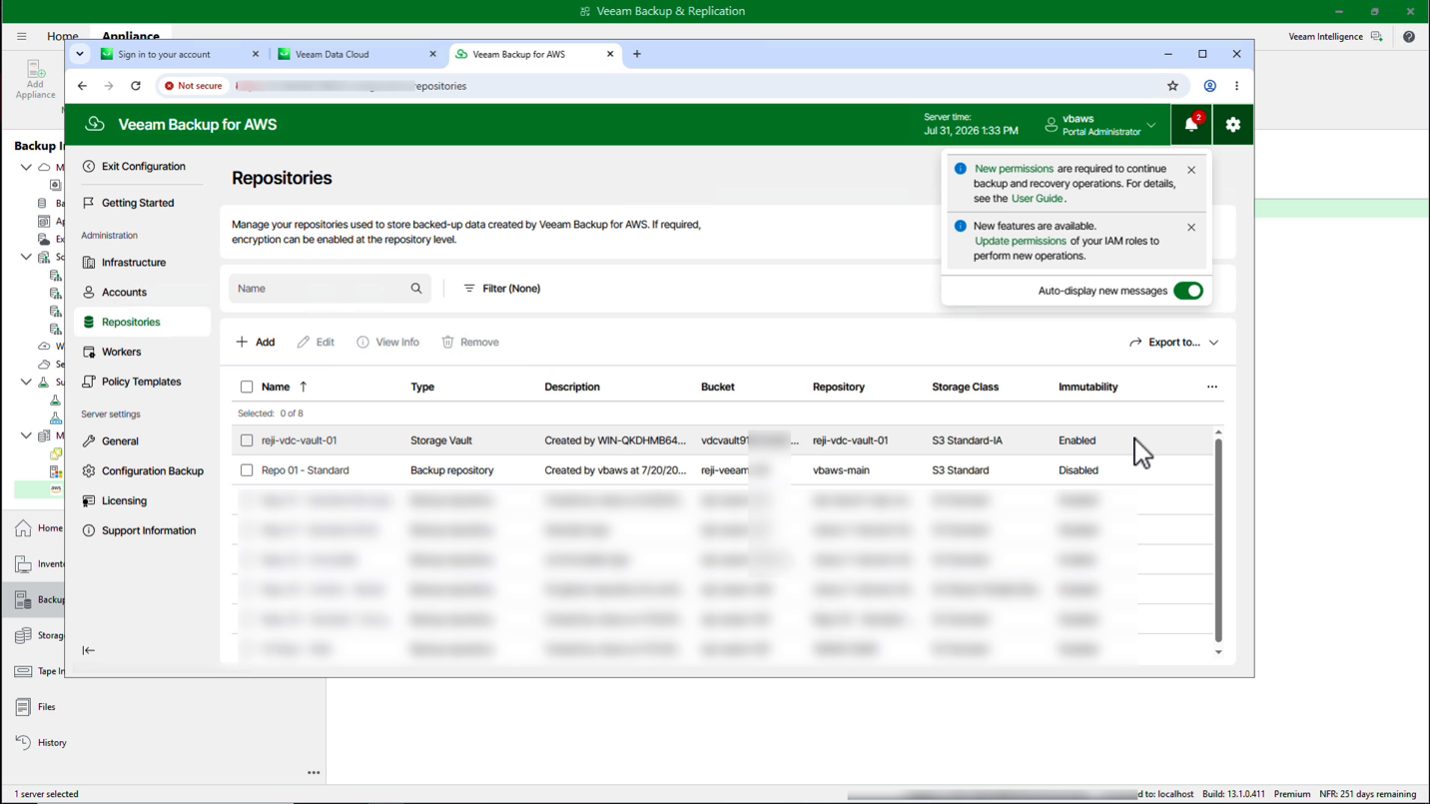
From here, the behavior will be like any other Veeam Backup for AWS repository. Point a backup policy at it or use it as a secondary target from your existing policy, and you have an offsite, immutable copy of your AWS backups without having to manage a bucket yourself.
Limitations and Gotchas
This integration simplifies setup, but there are a few details worth knowing before you walk through the wizard. Most are small workflow or availability considerations, but calling them out upfront can help avoid confusion during configuration.
- Vault assignment happens in Veeam Data Cloud, not in the wizard: The first time you connect an appliance to a vault, you have to hop into the Veeam Data Cloud portal to run the assignment. It’s a quick step, but easy to miss if you’re only watching the Veeam Backup & Replication console.
- Initialization takes a few minutes: Between the Entra ID application creation and vault initialization, plan for a short wait before the wizard lets you continue. It’s not stuck, it’s just doing setup work behind the scenes.
- View Info isn’t available yet for Storage Vault repositories: In the Veeam Backup for AWS Repositories list, View Info is grayed out for the Storage Vault type. You can still see the essentials, bucket, storage class, and immutability in the main list.
- Region and edition availability varies: Not every AWS region supports every Veeam Vault edition. Check the current region list before assuming Advanced or Archive is available where you need it.
- This is a VBR 13.1 feature: You need Veeam Backup & Replication 13.1 or later to see the Veeam Backup for AWS option in the External Repositories wizard.
Bringing Veeam Vault natively into Veeam Backup for AWS removes one of the last manual steps in getting AWS workloads to an immutable, offsite copy: Standing up and securing your own S3 bucket. The setup takes a few minutes end to end, the authentication is federated instead of key-based, and the result is a repository that behaves like any other in Veeam Backup for AWS. If you’re already running Veeam Backup for AWS and haven’t looked at Veeam Vault yet, this integration is a good reason to start.
For more information on Veeam Vault, see our User Guide.
The post Veeam Data Platform 13.1: Veeam Data Cloud Vault on Veeam Backup for AWS appeared first on Veeam Software Official Blog.
from Veeam Software Official Blog https://ift.tt/F1kRecb
Share this content: