
Veeam Backup & Replication 12.2 introduced Direct to Amazon S3 Glacier for VM-based GFS backups, letting Grandfather-Father-Son restore points move straight from a Performance Tier repository to Glacier-class storage without a Capacity Tier in between.
Veeam Data Platform 13.1 extends that same capability to unstructured data. Amazon S3 Glacier (and Azure Archive Storage) can now be added as a direct target for file, object, and NAS backup jobs, closing a gap that previously left file share backups without an archive-class option of their own.
Until this release, getting a file backup to genuinely cold, low-cost storage meant staging it through an Amazon S3 Standard repository first, or building a scale-out repository with a Capacity Tier just to reach the Archive Tier behind it. That extra tier is no longer required.
Let’s walk through what the feature delivers, why it matters for anyone protecting unstructured data, and how to set up a file backup job that targets Amazon S3 Glacier from creation through restore.
Key Features of Direct Backup to Amazon S3 Glacier for Unstructured Data
This update brings unstructured data backup in line with what VM-based GFS backups have supported since 12.2, so file shares and NAS data can reach archive-class storage without extra infrastructure:
- Native archive target for file backup jobs: An Amazon S3 Glacier repository can be selected directly as the target for a file or NAS backup job. No scale-out repository or intermediate Capacity Tier is required.
- GFS retention configured in the job itself: Grandfather-Father-Son retention, weekly, monthly, and yearly restore points, can now be set directly within the file backup job, referencing existing backup data rather than requiring separate full copies.
- Minimum storage duration awareness: The wizard checks your configured retention against the minimum storage duration Amazon bills for the Glacier storage class you’ve chosen and flags it if your settings would trigger early-deletion charges.
- Retrieval mode choice at restore time: When you need a file back, Veeam lets you pick from Amazon S3 Glacier’s retrieval options, trading cost against how quickly the data comes back.
Why This Matters
Unstructured data is usually the largest and coldest part of a backup environment. File shares, NAS exports, and user data accumulate for years and are rarely touched after the first few months. Getting that data to genuinely archive-priced storage, without extra infrastructure to manage, changes the economics of keeping it around:
- Archive pricing for the data that’s actually cold: Sending file backups straight to Glacier-class storage instead of parking them on S3 Standard (or a Capacity Tier) meaningfully lowers the cost of long-term retention for the part of the environment that grows fastest.
- One job, one policy: Retention and archival now live in the same file backup job instead of being split across a job and a separate scale-out repository configuration.
- Fewer moving parts to size and maintain: There’s no intermediate Capacity Tier to provision, monitor, or troubleshoot just to get data to the Archive Tier behind it.
- Deliberate, predictable restores: Because retrieval speed is a choice you make at restore time, not a surprise, you can match the retrieval mode to how urgently the file is needed.
Setting Up Direct Backup to Amazon S3 Glacier for Unstructured Data
Below, you’ll find a short video demonstrating how to set up Direct Backup to Amazon S3 Glacier followed by a step-by-step guide.
Setting this up starts the same way any file backup job does, with one difference: The repository you point it at is an Amazon S3 Glacier repository instead of a local or standard object storage target.
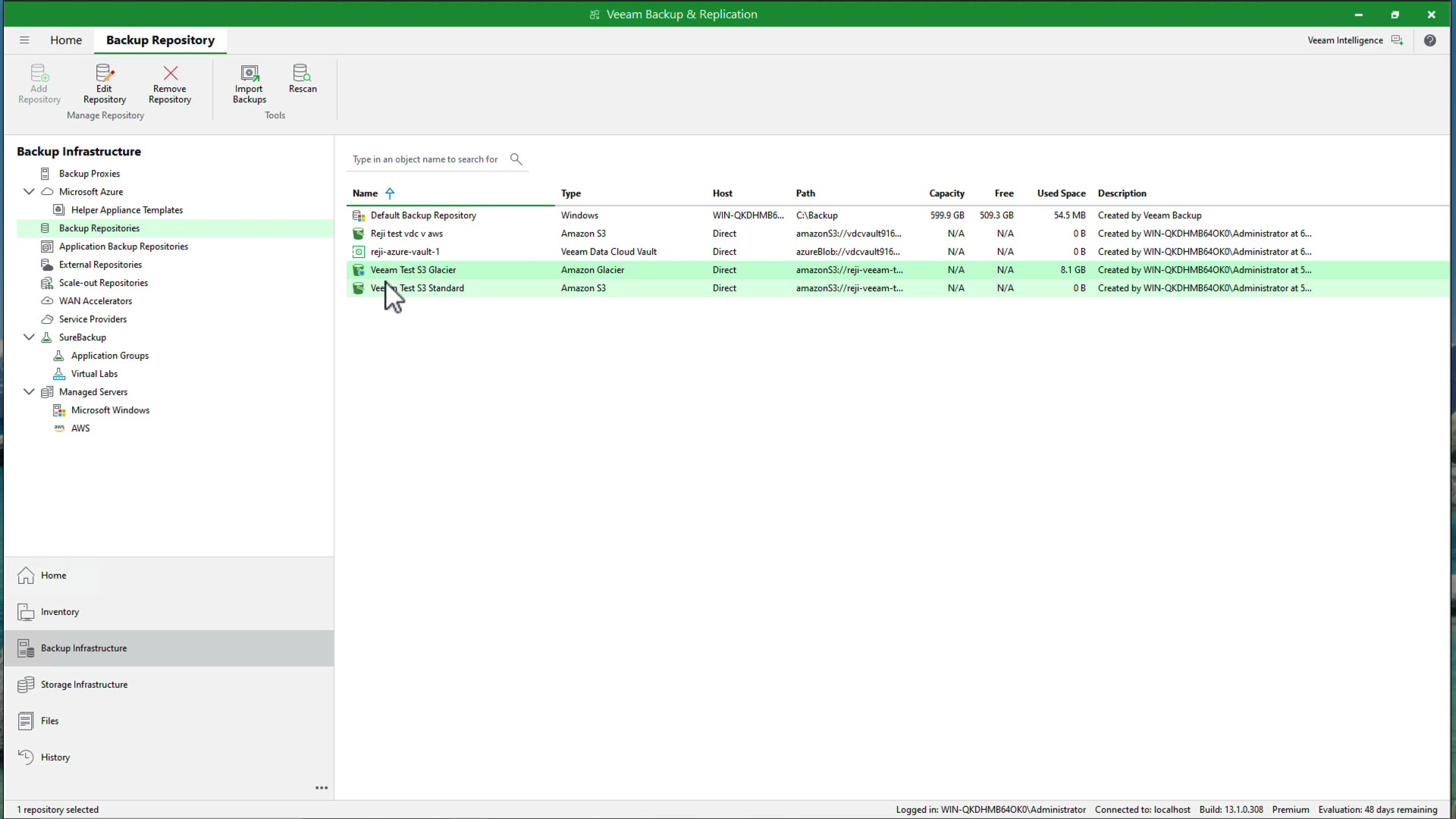
Open the Veeam Backup & Replication console and go to Backup Infrastructure > Backup Repositories. Confirm an Amazon S3 Glacier repository has already been added (see the Adding Amazon S3 Glacier Storage guide if you haven’t done this yet). You’ll see it listed with type Amazon Glacier, alongside your other repositories.
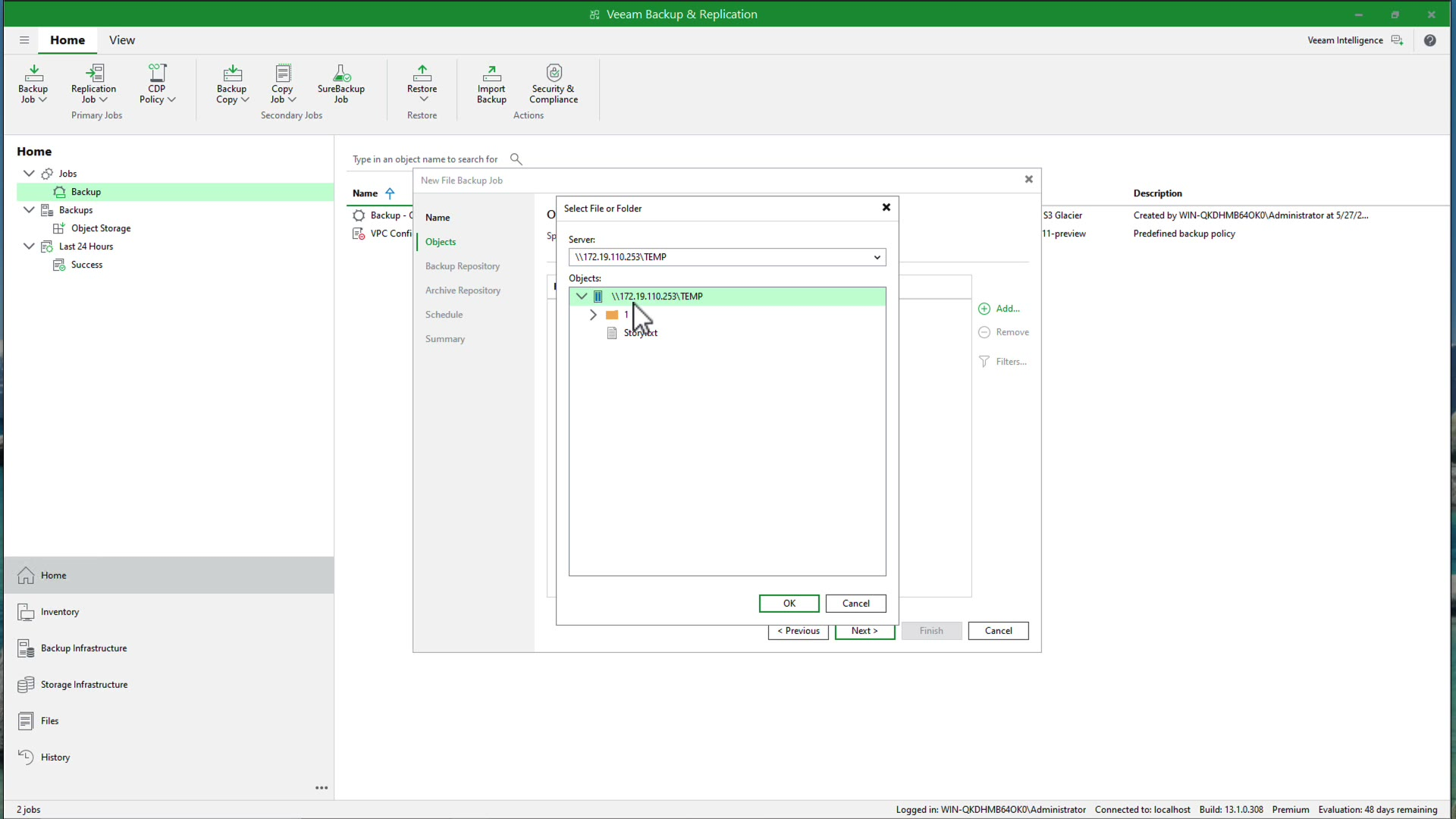
From Home, start a new File Backup job and add the folders, shares, or NAS filers you want to protect.
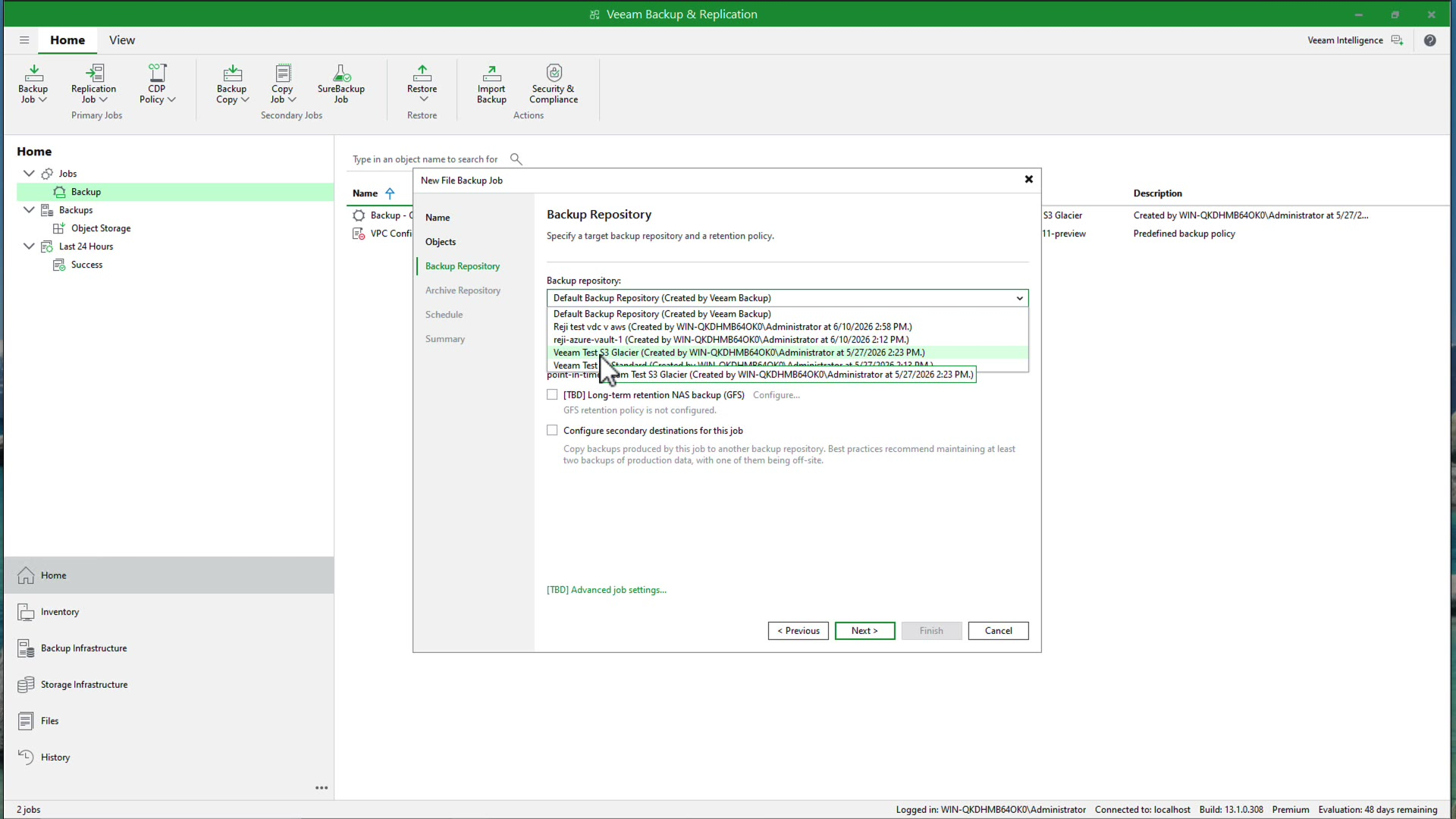
At the Backup Repository step, choose the Amazon S3 Glacier repository as the target and set the retention.
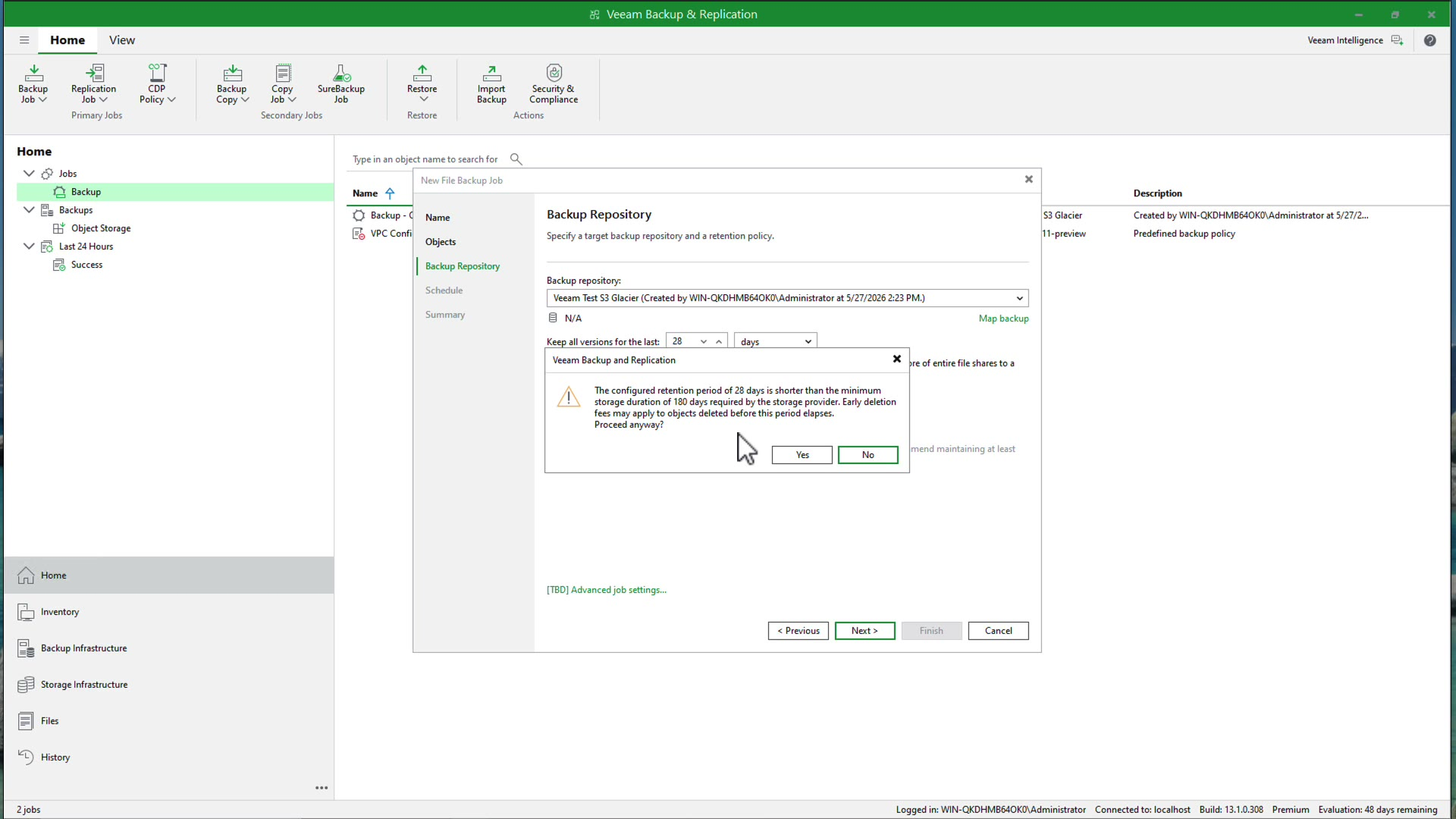
If your retention is shorter than the minimum storage duration for the Glacier storage class you selected, the wizard warns you before letting you continue. In this example, a 28-day retention triggered a warning because the storage class requires a 180-day minimum. Adjust retention here if you want to avoid early-deletion charges or proceed if you’re accepting them.
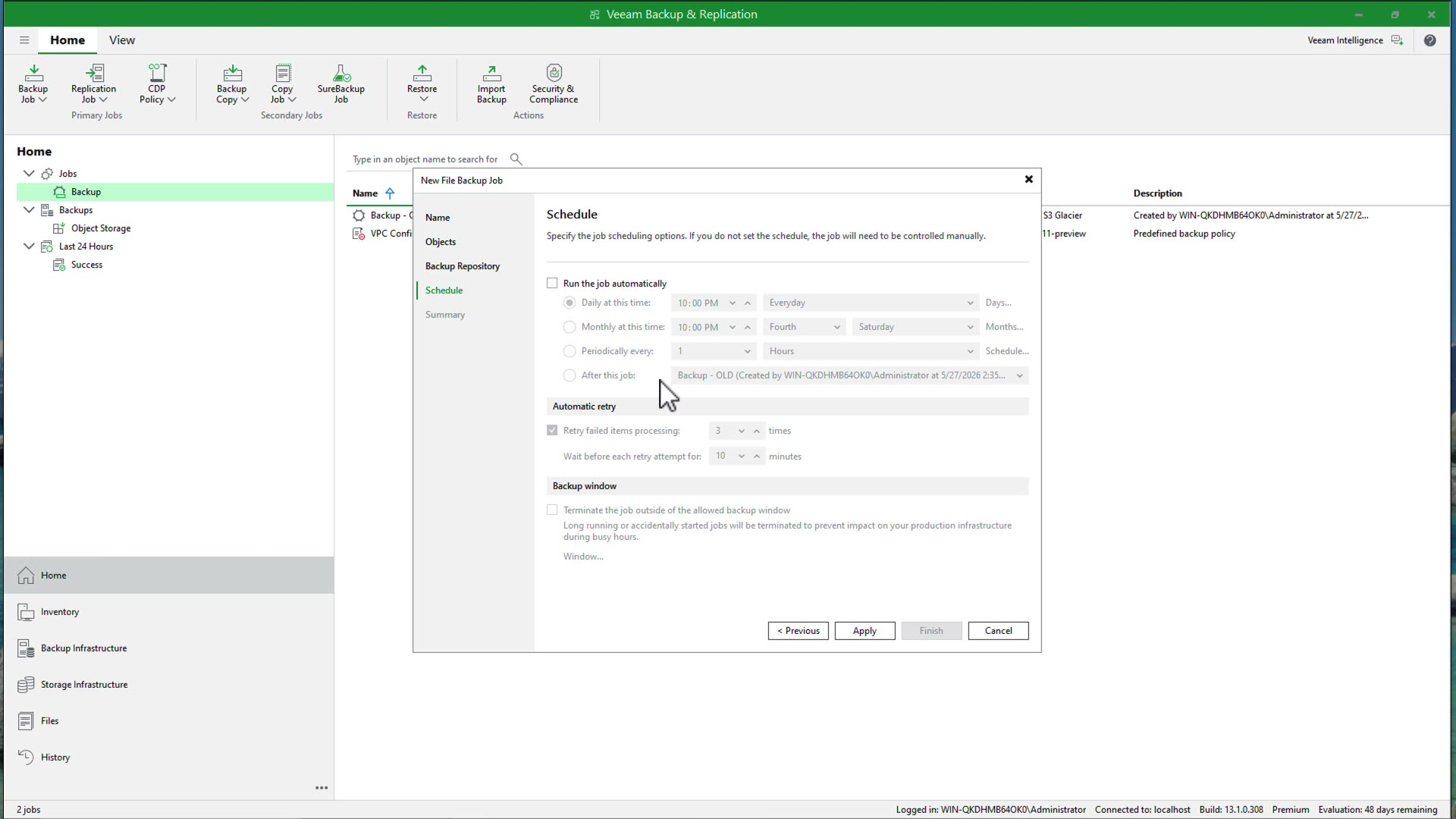
Set the job schedule and finish the wizard.
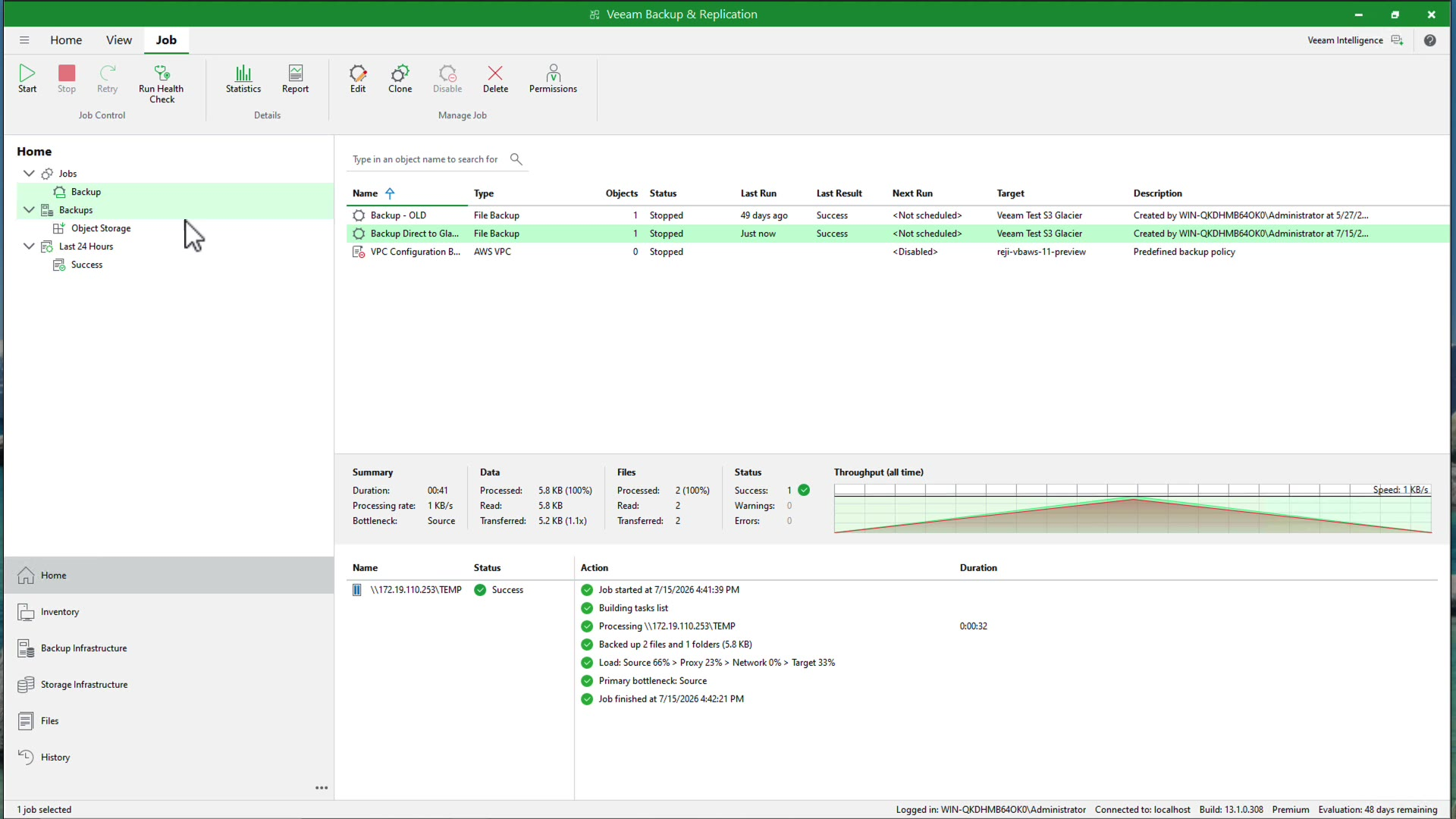
Run the backup job, either on its schedule or manually, and confirm it completes successfully.
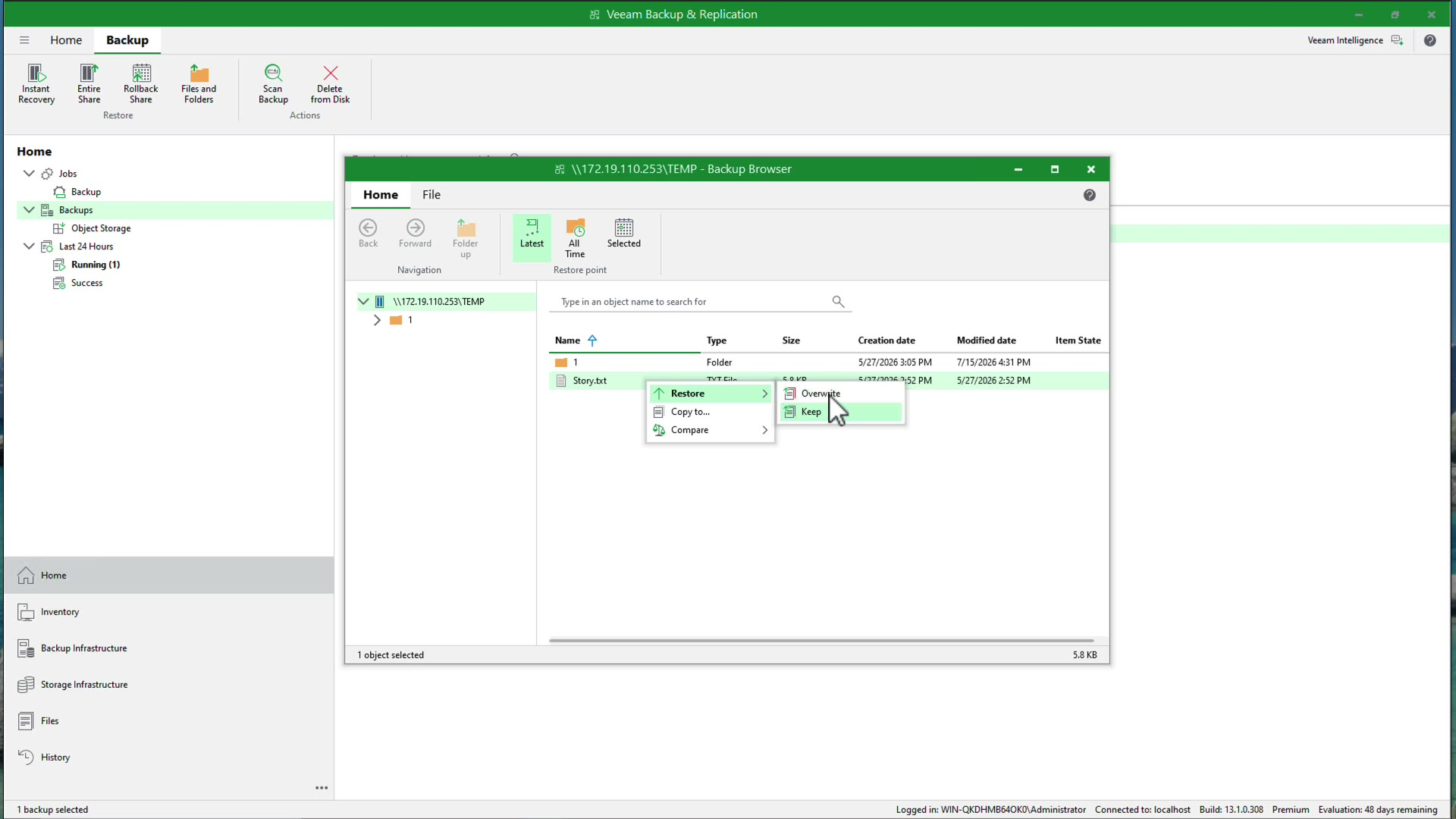
From here, restoring a file works the same way it does for any backup, with one extra decision: How fast you need the data back.
Browse the backup and start a file-level restore.
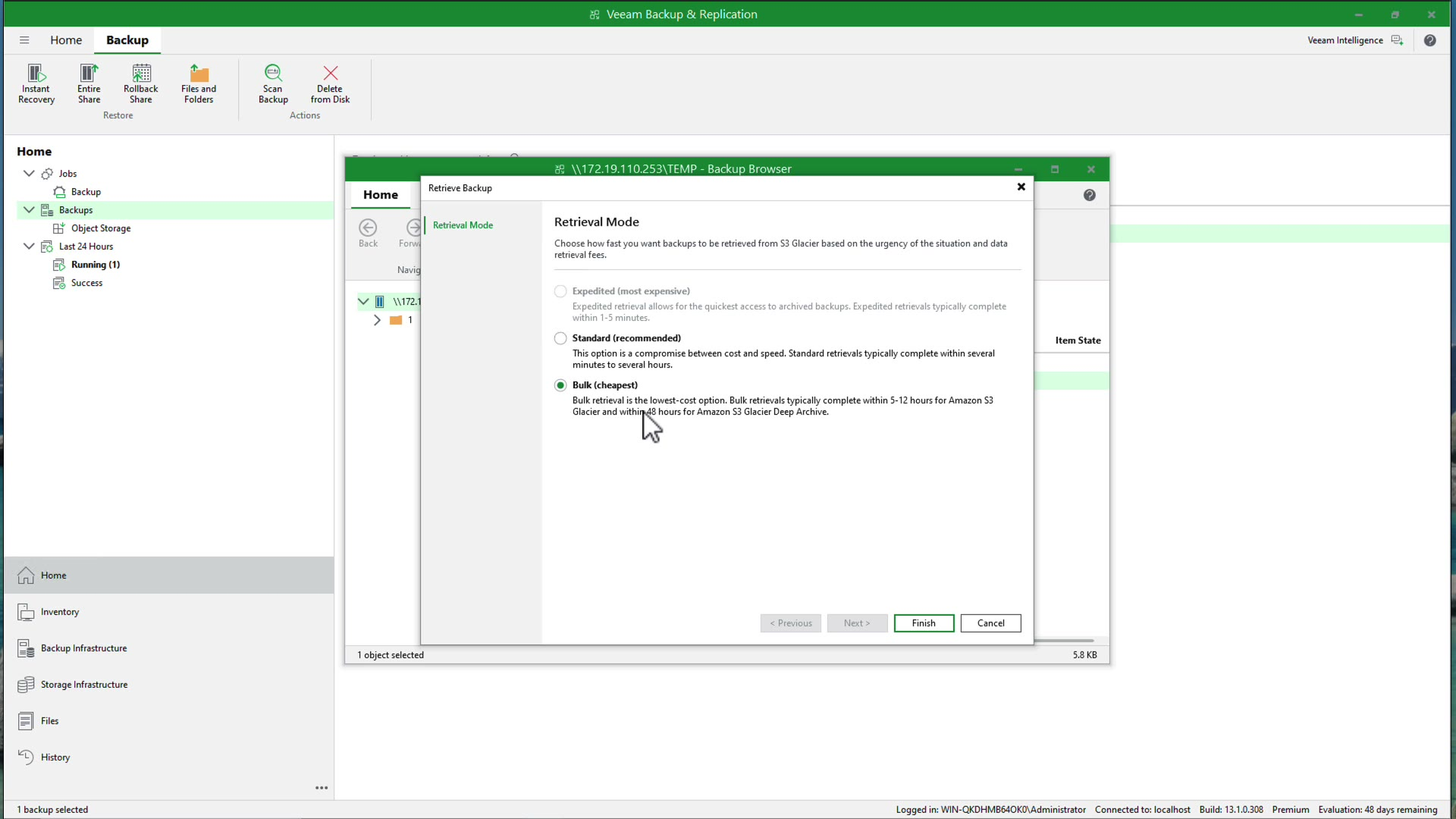
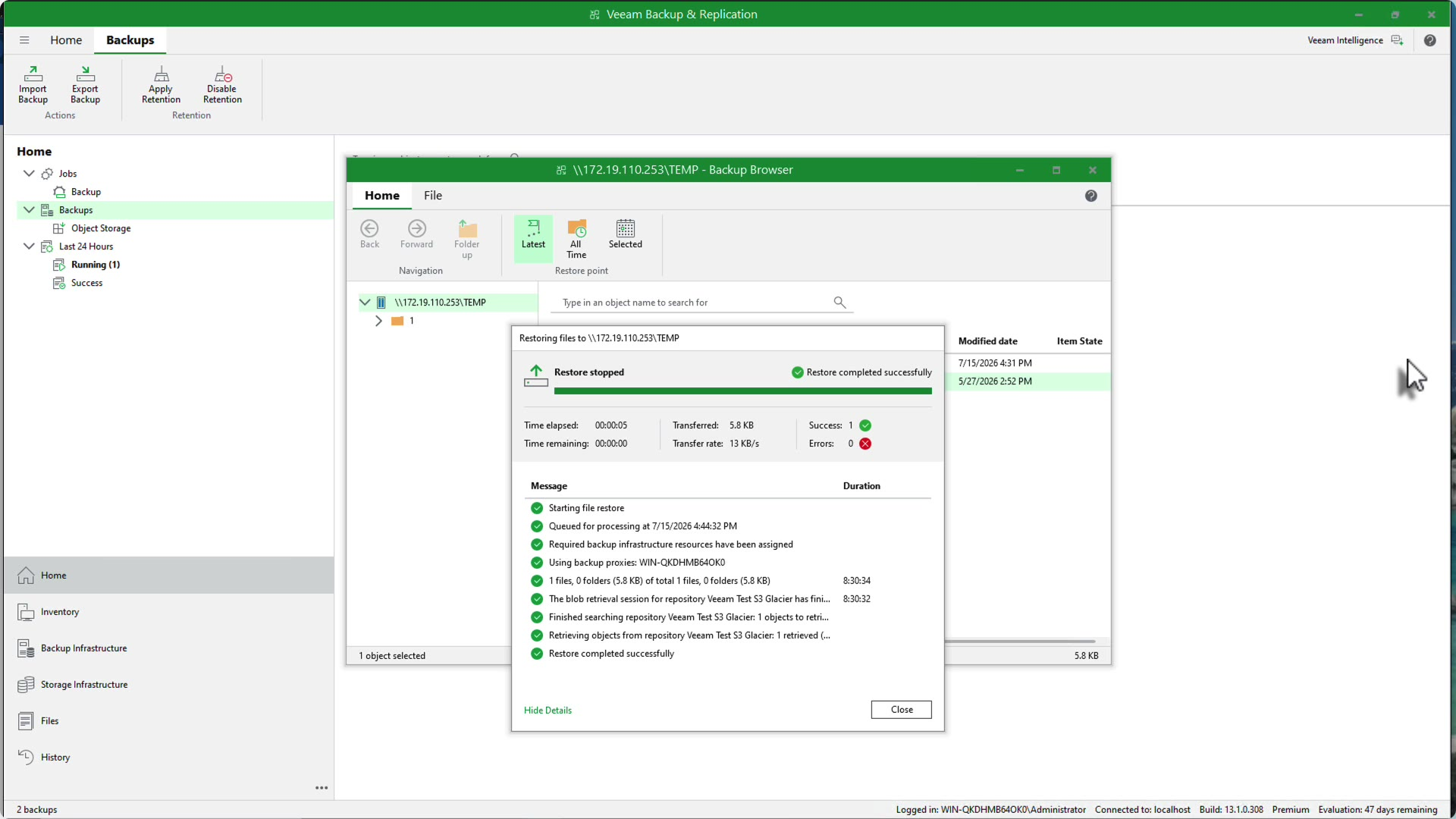
Because the file lives in Glacier, Veeam prompts you to retrieve it first, then lets you choose a retrieval mode: Expedited, Standard, or Bulk. Faster retrieval costs more; slower retrieval is cheaper. Pick based on how urgently the file is needed.
Confirm the restore completes successfully and the file is accessible again.
Limitations and Gotchas
Direct Backup to Amazon S3 Glacier for unstructured data simplifies archival for file, object, and NAS backups, but a few details are worth knowing before you build a job around it:
- No AWS Glacier vaults involved: Veeam uses the Glacier storage class on your Amazon S3 bucket through the standard S3 API. It does not create or use AWS Glacier vaults, which are a separate, legacy AWS archive service.
- Retrieval isn’t instant: Even the fastest retrieval option takes minutes, and slower, cheaper options can take hours. Set restore expectations accordingly, especially for user-driven file recovery requests.
- Early-deletion charges are real: Deleting or overwriting an object before the minimum storage duration elapses still bills for the full minimum duration. Keep retention settings aligned with the storage class you’ve chosen to avoid paying for data you no longer need.
- This is a 13.1 feature: You need Veeam Backup & Replication 13.1 or later to target Amazon S3 Glacier directly from a file or NAS backup job. Earlier versions support Direct to S3 Glacier only for VM-based GFS backups.
Bringing Direct to Amazon S3 Glacier to unstructured data means file shares and NAS backups finally get the same low-cost, long-term retention path that VM backups have had since 12.2, without adding a Capacity Tier just to reach it.
The setup is a normal file backup job with one repository choice, and the restore experience gives you control over the cost-versus-speed tradeoff instead of leaving it to guesswork.
If you’re protecting NAS or file server data and haven’t looked at Glacier as a target, this release is a good reason to start.
For more information, see the Adding Amazon S3 Glacier Storage and Unstructured Data sections of the Veeam Backup & Replication User Guide.
The post Veeam Data Platform 13.1: Direct Backup to Amazon S3 Glacier for Unstructured Data appeared first on Veeam Software Official Blog.
from Veeam Software Official Blog https://ift.tt/DZBKChn
Share this content: